Tips on Increasing Laptop Battery Life  

Posted by Laptop Tips

Battery life is one of the most important aspects people look at when buying laptop computers. The longer the battery lasts, the more work you can get done away from a power source. Therefore, it is important to take steps to reduce power consumption, and increase the overall life span of the battery.

1. Switch-off Wi-Fi and/or Bluetooth when you don't use it.

Wi-Fi and Bluetooth drain your battery power fast. When you are not connecting to a wireless network and any bluetooth device, try to switch off both to save your battery power.

2. Draw less power when using your laptop.

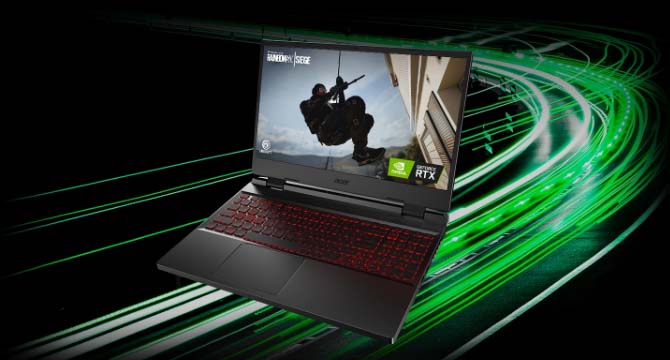
The more applications you run on your laptop, and the higher your power settings, the more the battery will drain during use. Running fewer programs at one time, and changing power settings, such as reducing the brightness of the display, will extend battery life. Running graphically intensive programs like games is especially hard on batteries, since graphics cards draw large amounts of power, and generate a lot of heat.

3. Do Away with unused peripherals.

Computer peripherals such as mice, external hard disk drives and external optical drives need electricity to run. When you are done using these equipments, unplug them from the system so they will no longer drain battery power. Laptops have a touchpad so you can actually work without a mouse.

4. Avoid extreme temperatures.

Laptop batteries are designed to function properly within a set range of temperature. Avoid using or charging your laptop in hot or cold conditions. Likewise, laptops normally run more efficiently when it is cooler. Try to keep the internal temperature down by keeping the fan free and clear for proper ventilation

Laptop tips  

Posted by Laptop Tips

You just got a shiny new laptop to use on your commute to the office, on business trips, vacations and at the coffee shop down the street. Congratulations! You'll be a productivity powerhouse! But hold your horses for a minute there, bucko.

Any road warrior will tell you life with a lappie isn't always easy. As a freelancer with a keyboard permanently propped up on my thighs (like right now on an airplane bound for Seattle), I've got a few hints and tips for extending the life of your laptop and easing the pain of the never-ending outlet and hotspot hunt.

Extend your battery life.

Laptop productivity on the cold, cruel and often electrical outletless road often depends entirely on how much juice you've got left. The screen draws the most power from your battery. When you don't have access to an outlet, dim your screen to the lowest setting to make your battery last as long as possible.

Also, disable unnecessary CPU-cycle-eating processes - like auto Bluetooth device and wifi network detection - to save juice and make your battery last longer.

Save your keyboard and screen.

At the beach house there is sand, at the coffee shop there are crumbs, and right now your fingers are covered in Dorito dust. Protect your keyboard from stray crumbage getting into the cracks with a protective cover. At a reader's recommendation, I invested in the iSkin which does double duty: it keeps crumbs out from between the keys and also protects the screen from keyboard scratches.

Another way to prevent screen scrapes is a piece of rubberized shelf liner cut to fit inside your lappie like the bologna in a sandwich when you shut it. I've also seen people use a thin piece of cloth.

If your laptop keys are already sticky and furry, give it a good cleaning with some compressed air, cotton swabs and elbow grease.

Keep it cool.

After an hour or so, a computer can burn one's thighs and wrists (like my super-heat conducting titanium Powerbook). If this is a problem for you, get material that doesn't conduct heat well between your skin and your lappie, like a lap desk or your laptop sleeve. Long-sleeved shirts with big cuffs help on wrists when the top of your keyboard gets hot to the touch.

Work offline.

Web-based email's great, but the dream of always-on Internet connectivity hasn't yet come true. Get yourself set up to work offline on your laptop on the plane and other wifi-less locations.

For example, Mozilla Thunderbird is a must-have install on your laptop. In addition to downloading all your mail locally for working with offline, Thunderbird 1.5 has excellent SMTP management so you can switch which server you send your mail through when you get online very quickly. Using a NetZero dialup account that requires you use smtp.netzero.net? Need to use the secure SMTP server at the office for work mail? No problem. You can set up multiple SMTP servers and associate them with different email accounts with Thunderbird.

For more on working offline or with a super-slow connection, check out previously-posted feature How to survive a slow internet connection.

Secure your data.

While you're out and about and on open wireless networks, make sure you've got a secure firewall installed on your laptop and that its settings are extremely restrictive. Turn off folder sharing and any local servers you have running (like a web, FTP or VNC) to keep others from peeking in on your data. Make sure your laptop's logins have strong passwords assigned.

Also, consider encrypting the data on your disk in case of theft, using a utility like Mac OS X's FileVault. If you're really concerned about someone grabbing your laptop and running, check out "Lojack for Laptops" software which helps you trace and recover your stolen computer.

Carry it well.

Your laptop spends a lot of time swinging over your shoulder, banging around on your back, bumping into the guy next to you on the subway, and sliding around on your car's back seat. Wrapping it up in that spare Linux tee-shirt and shoving it into your messenger bag full of gadgets probably isn't a good idea. Make sure that sucker's snug as a bug in a rug. Invest in a padded sleeve or bag made to carry laptops that'll protect it when your bag falls over or gets kicked. I really dig the spendy but stylish Booq bags and sleeves; a little research will turn up the right one for your budget and style.

Back up when you get home.

Portable computers deal with a lot more wear and tear than desktops, and this increases the risk of hard drive failure. So most importantly, make sure you back up the data on your laptop.

A few months ago, a panicked Lifehacker reader wrote in saying the laptop from which she runs her business was stolen and that she had no recent backup. DO NOT LET THIS HAPPEN TO YOU. Create a lappie docking station space at home where you can plug in to recharge the battery and hook up an external drive to backup your data. See more on how to automatically back up your Windows data here.

Pack some helpful extras.

If you've got a CD-R or DVD-R drive in your lappie, keep a few spare blanks or a USB drive for easy backup on the road. A 2 to 3 prong electrical plug adaptor might help in places where your 3 prong plug needs to go into a 2 prong outlet. And of course, an extra charged-up battery, an ethernet cable or phone cord or an extra mouse might be a helpful addition to your portable arsenal.

Notebook Processors  

Posted by Laptop Tips

Notebook Processors
In the following report we present all laptop processors which are available at the market at present and give a rough classification of the current consumption and the performance of the different architectures. An approximate rating with average benchmark values can be found in our beta version benchmark list of mobile processors (coming soon).
..
Intel Core 2 Duo (Merom)

This is the Core Duo and Core Solo successor with a longer pipeline and 5-20% more speed without more current consumption. As an addition to the Core Duo design there exists a fourth decoder, an amplified SSE-unit and an additional arithmetical logical unit (ALU).
Features are 2 cores, a 64-bit EM64T command amplification and 2 or 4 MB L2 Cache and 291 millions of transistors, which are finished in 65 nm. Furthermore all types support "Execute Disable Bit" technics, SSSE3 (SSE4), Enhanced Speedstep, LaGrande and most types the virtualisation technics (VT) Vanderpool.

The Core 2 Duo for laptops is identical to the desktop Cure 2 Duo processors but the notebook-processors work with lower tensions (0.95 to 1188 Volt) and a lower Frontside bus clock (1066 vs 667 MHz). The performance of equally clocked notebooks is 20-25% lower than Desktop PCs because of the lower Frontside bus clock and the slower hard disks.

The energy need of the processors is marked by pre-set letters in front of the type designation (number).E ... 55-75 WattsT ... 25-55 Watts (standard version in notebooks)L ... 15-25 Watts (low boltage)U ... <15> Intel product informations
..
Intel Core 2 Solo (Merom)
This is the successor of the Core Solo and technically a Core 2 Duo with only one core. It will be available for laptops starting with the 3. quarter 2007 and only as an Ultra Low Voltage (ULV). Therefore the core tension is very low (=economic). 2 versions are planned at moment:
U2100, 1.2 GHz, 1MB L2 Cache, 533 MHz FSB, 5 W max. TDP
U2200, 1.06 GHz, 1MB L2 Cache, 533 FSB, 5 W max. TDP
Intel Core Duo (Yonah)

Pentium M successorDouble Core processor with a very good relation of performance to current consumption. The 2 MB L2 Cache are used together by the double. The maximum capacity of 31 watts is only 4 watts more than with the Pentium M (predecessor). Both cores are lowered automatically and independently of each other by speed steps down to 1 GHz. In addition it now supports also SSE3 instructions.
..
After first benchmarks the Core Duo completes all tests at least just as fast as a equivalent Pentium M. With applications, which were designed for multi-processors, the performance can be nearly twice as fast as with the Pentium M (e.g. CineBench around 86% fast)
Models (clock, TDP):T2700 (2.33 GHz, 31 W, FSB 667 MHz)T2600 (2.16 GHz, 31 W, FSB 667 MHz)T2500 (2.00 GHz, 31 W, FSB 667 MHz)T2450 (2.00 GHz, FSB 533 MHz)T2400 (1.83 GHz, 31 W, FSB, 667 MHz)T2350 (1.86 GHz, FSB 533 MHz)T2300 (1.66 GHz, 31 W, 667 MHz)T2250 (1.73 GHz, FSB 533, MHz)T2050 (1.60 GHz, FSB 533 MHz)T2050E (1.60 GHz, FSB 533 MHz): current saving version with 1.3 instead of 1.4 Volt supply voltageL2500 LV, 1.83 GHz, FSB 667 MHzL2400 LV, 1.66 GHz, 15 W, FSB 667 MHzL2300 LV, 1.50 GHz, 15 W, FSB 667 MHzU2500 ULV, 1.20 GHz, 9.5 W, FSB 533 MHzU2400 ULV, 1.06 GHz, 9.5 W, FSB 533 MHz
Pentium Dual Core T2060: 1.6 GHz, FSB 533 MHz, 1 MB L2 Cache (the return of the name Pentium, though Yonah core)Pentium Dual Core T2080: 1.73 GHz, FSB 533 MHz, 1 MB L2 Cache

Core Duo produkt description

Intel Core Solo
Single core version of the Core Duo and successor of the Intel Pentium M; Because of the 65nm reduced structure width also smaller current consumption than Pentium M (maximally 27 Watts); the performance is comparable with the equivalent clocked Pentium M (somewhat faster because of a few improvements).
Models:T1200 mit 1.50 GHz, FSB 667 MHz, 2MB L2 CacheT1300 with 1,66 GHz 2MB L2 CacheT1350 with 1.86 GHz, FSB 533 MHz, 2MB L2 Cache (about the same level like Pentium M 750)T1400 mit 1.83 GHz, FSB 667 MHz, 2MB L2 Cache
Ultra low voltage models (maximum 5.5 Watt):U1300 mit 1.06 GHz, FSB 667 MHz, 2MB L2 CacheU1400 mit 1.20 GHz, FSB 667 MHz, 2MB L2 CacheU1500 mit 1.33 GHz, FSB 667 MHz, 2MB L2 Cache

Core Solo product description

Pentium M
Intel Pentium M
900 - 2260 MHz, 1-2 MB level 2 Cache, 90nm and 130nm production process, 400 and 533 MHz front Side bus (FSB);With Intel chip set (855 or 915) and Intel WLAN also available with the name Centrino (name for the package).In the comparison very fast per megahertz and very modest with weaknesses in floating point operations.It is also available as a low voltage version with very small current consumption.

Celeron M
Intel Celeron M
800 - 1500 MHz, 512KB - 1 MB level 2 Cache. It is a Pentium M with halved level 2 Cache and limited on FSB 400. The characteristic of this processor is the speed, which is hardly slower than an equivalent Pentium M. However it can change the speed not dynamically like the Pentium M and therefore needs without load more current.It is also available as Low Voltage Version with very small current consumption.
The 4xx series is based upon the Core Solo and has a Front Side Bus (FSB) of 533 MHz, but only 1 instead of 2 MB L2 Cache. It seems to be bring enough performance for office applications (as the 3xx series).
The 5xx series is based upon the Core 2 Solo (Merom architecure) and is slightly faster than an equally fast 4xx Celeron M. The Celeron does not support any virtualisation technics and has no ViiV and vPRO certificate (in contrary to Core 2 Solo).
410: 1.46 GHz, FSB 533, 1MB L2 Cache420: 1.60 GHz, FSB 533, 1MB L2 Cache423: 1.06 GHz, FSB 533, 1MB L2 Cache, Ultra Low Voltage = current saving
520: 1.60 GHz, FSB 533, 1 MB L2 Cache, 64 Bit530: 1.73 GHz, FSB 533, 1 MB L2 Cache, 64 Bit
523: 0.933 GHz, FSB 533, 1MB L2 Cache, 5 Watt max TDP, Ultra Low Voltage = current saving (starting with quarter 3 2007)

Intel Mobile Pentium 4 M
2,4 - 3.46 Ghz (in former times starting from 1,4 Ghz) with FSB 533 (in former times 400) and 512KB to 1 MB level 2 Cache. It is produced in 90 - 130 nm production process and is relative slow, but uses much current and heats up considerably per megahertz (compared with mobile processors like Pentium M). Technically it is a Pentium 4 with some current saving mechanisms (e.g. speedstep) and less current consumption.
There existed type variants of Mobile Intel Pentium 4 for DTR (desktop replacement laptops). It supports Enhanced Speed Step and other features for the reduction of current consumption, but needs clearly more current than the Pentium 4-M models. It was intruduced with FSB533-connection and clock frequencies between 2.4 and 3.06 GHz.

Intel mobile Celeron 4 M
Technically it is a Pentium 4 M however without speed steps and with less level 2 Cache. In contrast to the Celeron M it is very slow, since the long pipeline of architecture needs a large level 2 Cache. Slow, warm and very hungry for current per megahertz.

AMD Turion64 X2
64 bit dual core (2 core) processor, code name Taylor (2 x 256 KB L2) and Trinidad (2 x 512 KB L2), DDR2-667 support, Pacifica (AMD-v) virtualisation technics, 31-35 W TDP, socket S1, 90 nm fabrication, separated L2 Caches, integrated 333 MHz DDR, 800 MHz Hypertransport
AMD Turion 64 X2 is intended to be positioned against the Intel Core Duo was presented in 17. May 2006. The current consumption is not higher than with Centrino-Duo-notebooks (TL-45 with ATI Xpress and Mobility Radeon X300). This means, that approximative the same battery runtime and fan functions can be expected (with this chipset). However, the performance was 20% below the T2300 (1.66 GHz) due to the lower L2 Cache (Core Duo has 2048 Kbyte shared L2 Cache). Nevertheless, the performance is sufficient.
In March 2007 a Turion 64 with reduced structure was announced (as a response to Intels Santa Rosa Core 2 Duo), which have up to 2.3 GHz.
TL-50 1.6 GHz 2 x 256 KB L2 Cache, 31 Watt TDPTL-52 1.6 GHz 2 x 512 KB L2 Cache, 31 Watt TDPTL-56 1.8 GHz 2 x 512 KB L2 Cache, 33 Watt TDP, 65nm (31 Watt after May 07)TL-58 1.9 GHz 2 x 512KB L2 Cache, 31 Watt TDP, 65nmTL-60 2.0 GHz 2 x 512 KB L2 Cache, 35 Watt TDP, 65nmTL-64 2.2 GHz 2 x 512KB L2 Cache, 35 Watt TDP, 65nmTL-66 2.3 GHz 2 x 512KB L2 Cache, 35 Watt TDP, 65nm

AMD Turion 64
This is a derivative of the Athlon 64 with SSE3 with nx storage protection, 32 and 64 bit support, integrated memory controller for PC3200 memory, mode for low capacity, HT800 and 2 variants ML with 35 Watt and MB with 25 Watt consumption.
Speeds:MT-30 / ML-30 (1.6 GHz, 1 MB L2)MT-32 / ML-32 (1.8 GHz, 512 KB L2)MT-34 / ML-34 (1.8 GHz, 1 MB L2)MK-36 (2.0 GHz, 512 KB L2, 31 Watt TDP)MT-37 / ML-37 (2.0 GHz, 1 MB L2)MT-40 / ML-40 (2.2 GHz, 1 MB L2)ML-42 (2.4 GHz, 512 KB L2)ML-44 (2.4 GHz, 1 MB L2)
Regarding the consumption MT might be very similar to a Pentium M. The speed is moderate and approximately as fast as an Pentium M with equivalent clock speed.

AMD Mobile Athlon 64
2700+ (1,6 Ghz) - 4000+ (2,6 Ghz). The rating is comparable with the clock rates of Pentium 4 M. It is a 32 and 64 bit processor relative fast per megahertz and uses moderately much current (and produces heat). The top versions are DTR (Desktop replacement) versions for large laptops.

AMD Mobile Sempron
2800+ to 3000+ mobile Athlon 64 with reduced level 2 Cache; The rating is not comparable with Athlon 64 Rating. A 3000+ Athlon 64 is faster than a 3000+ Sempron. There is no 64 bit support.
Especially: Sempron 2100+, socket S1, 9 Watt TDP, 1 GHz

AMD Mobile Athlon XP-M
Mobile version of the Athlon XP regarding rating comparable with Pentium 4 clock frequencies; Somewhat more slow than Athlon 64 with same rating and no 64 bit support.

Transmeta Efficeon
Successor of the Crusoe processor; not as fast as comparable Intel and AMD processors, however very economic current consumption;

Transmeta Crusoe
Not as fast as comparable Intel and AMD processors, however very economic current consumption;

RAM Failures  

Posted by Laptop Tips

Bad RAM is somehow harder to diagnose as similar symptoms may be caused by software problems, other hardware problems or even motherboard failure. However if you experience any of these symptoms, you should check for bad RAM before attempting any other troubleshooting.

Symptoms:

  • Windows doesn’t start showing different error messages each time.
  • Windows crashes (blue screen) or freezes frequently.
  • Windows crashes as soon as you try to start a program.
  • Unexplained random crashes and freezes without error messages.

Troubleshooting:

Download Memtest86+ and burn it to a CD or make a floppy. For CD get the “Pre-Compiled Bootable ISO (.zip)” and for floppy (if you can start your laptop from a floppy drive) get the “Pre-Compiled package for Floppy (DOS – Win)”. If you are making a CD, you will have to “burn” the ISO image to the CD, not just copy it. There are numerous guides how to do that with different CD burning software (you cannot do it with the build-in Windows CD burning). In general you need to find where on the menus of your favourite CD burning program it says something like “Create CD from Image” or “Burn Image to Disk” or similar. Then select the .iso image file and burn it. If your laptop crashes a lot and you cannot make the Memtest CD or floppy, ask a friend or talk to your local repair shop and ask them to make one for you (it probably will be $5-$10).

Start the laptop from the CD/floppy and let Memtest86 run for a couple of hours. To start your laptop from the CD you may need to select a temporary boot device by pressing F12, F11 or F8 as soon as the logo appears on the screen (2-3 sec. after turning it on) or immediately after entering the BIOS/HD password if you have set one. If that doesn’t work, you will have to change the boot order in the BIOS. To do that try pressing F1, F2 or “Esc” (for Toshiba) to get to the BIOS settings and make the CD the first booting device.

If Memtest86 finds errors (there usually will be thousands of them) try removing one of the RAM chips (if your laptop has two of them) and run Memtest86 again.

Most laptops have two RAM slots that are easily accessible under a tab on the bottom. Others have just one slot there and the other is under the keyboard, on some there is RAM soldered on the motherboard (Toshiba), and a few laptops have just one RAM slot.

Removing laptop RAM: remove the screws, touch an exposed metal part of the laptop with both your hands (usually the VGA connector has two visible screws that you can touch to discharge any static electricity), then release both clips that hold the RAM and it will pop up. Hold the RAM on the sides (avoid touching the chips) and gently pull it out. To install, insert back the RAM and gently push it down until it locks in place.On some laptops the RAM is under the keyboard, or one chip is on the bottom of the laptop as described above, and another is under the keyboard. It is usually very easy to remove the keyboard on almost all laptops. Try to find the service manual for your model and find the description there. Alternatively, there are step-by-step picture guides on the Internet for most laptop models.

Memtest86 will run until you stop it by pressing “Esc” key. If your laptop freezes or restarts by itself while running the RAM test, it either is overheating or has another hardware problem.

Wraps, Laundry Bags and Nap Mats  

Posted by Laptop Tips

Search posylane.com for shopping online. Are you looking for a wonderful place for buying wonderful gifts? If you are looking for the wonderful nap mat for your toddler to take along to sleepovers.

Nap Mat is very important for toddler kids or even those infant babies. It is one thing that a mother must have to bring when bringing kids outdoor or travel. It protects the child from hard objects where you lay your kids outdoor. It also protects your child from chilling because this Mint's nap mat is padded with cotton and nylon with soft fleecy blanket. This would surely makes your kids feels comfortable.

Laundry Bag, this is needed for dirty used clothes to prevent contaminating the clean and unused clothes. Choose Mint's Laundry bag because looks neat and no mess of your stuffs. They are durable and available in different colors.

Towel wrap, choose Mint's Towel wrap because it is soft. The soft fabrics will not damage or irritate kid's sensitive skin. And it is more attractive if you have buy the personalized towel wrap. Designs are good with quality . Different colors available to choose from and they accepts made to order personalized bath towel wrap.

BuyBlogReviews.com

PayPerPost, Inc

PPP Direct

Other Resources

All templates

Ebook Center

Site Info

Daily News

Other Websites

Archives

ss_blog_claim=12f04bdd04b62e731fa8dfaff0e6202f ss_blog_claim=12f04bdd04b62e731fa8dfaff0e6202f